
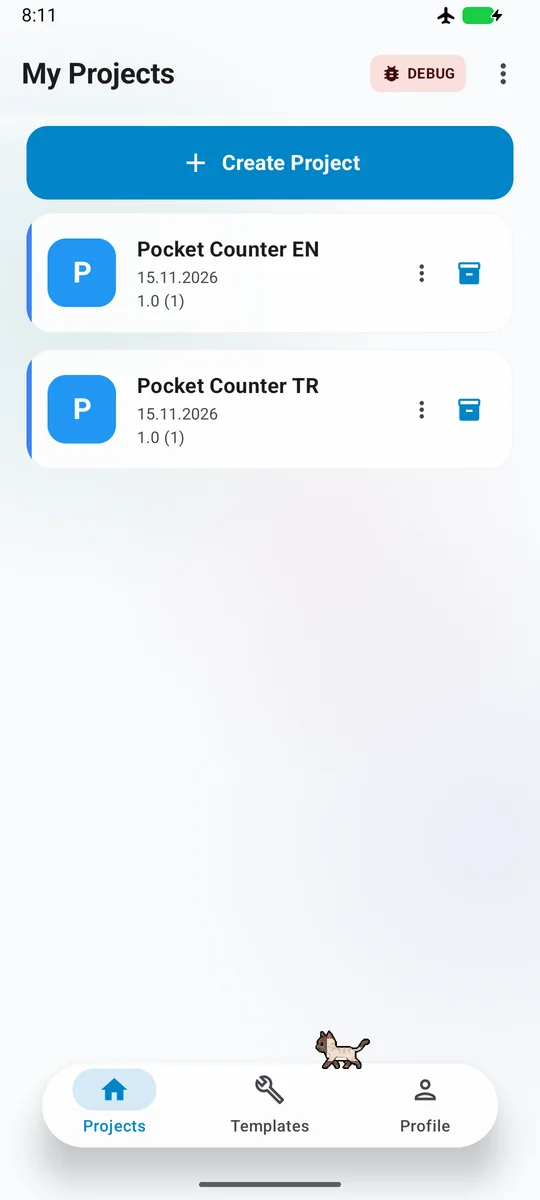
My Projects is the home screen of the builder. Every app, HTML document and PDF document you create is saved here, so you can reopen it, change it and build a new version later.
Project types and limits
There are three kinds of saved projects: apps, HTML documents and PDF documents. The free version keeps up to 5 of each kind. Pro removes the count limit. Delete or export old projects if you reach the limit.
Use ⋮ → Filter by type to show only one kind.
Project menu
Tap ⋮ on a project card:
| Action | What it does | Pro |
|---|---|---|
| Rename | Changes the project name and the app name shown under the icon | |
| Duplicate | Makes a copy (named ”… Copy”) to try changes without touching the original. Change the package name before publishing a copy as a separate app | |
| Convert to app | Turns an HTML or PDF document into an app project you can build | |
| Edit with AI | For AI-created projects: continue changing the app with AI | |
| Move to folder / Remove from folder | Organize projects into folders | |
| Move up / Move down | Change the order | |
| Build Outputs | Open the APK and AAB files built from this project, to install or share again | |
| Export Project (ZIP) | Back up the project to a ZIP file | yes |
| Export as Android Project (ZIP) | Export source code you can open in Android Studio | yes |
| Delete | Removes the project. This cannot be undone |
Folders
Create a folder from the project list, then use Move to folder on each project. Folders can be renamed.
Back up and restore (Pro)
Export Project (ZIP) saves the project with its HTML, files, icon and settings. The builder asks Include Keystore?:
- Include Keystore – the project’s signing key goes into the ZIP, so after importing you can update the same installed or published app. Keep such a ZIP private: whoever has the key can sign updates as you.
- Export without Keystore – safe to share with others; they cannot sign updates for your app.
⋮ → Export All Projects (ZIP) backs up everything at once. ⋮ → Import Project (ZIP) restores a backup made by the builder. It is not the same as importing a website ZIP. For a ZIP of HTML, CSS and JavaScript files, extract it and use a project folder.
Make a backup before uninstalling the builder or switching phones. Uninstalling deletes the projects and keys stored only inside the app.
Export to Android Studio (Pro)
Export as Android Project (ZIP) creates a complete Android Studio project with your web files, icon and settings, including ads and permissions. Use it when you want to add native Kotlin code, use other SDKs or build on a computer. Export All as Android Projects (ZIP) does this for every app.
Build outputs
Each build is saved and listed in Build Outputs. From there you can install the APK again, share it, or save the AAB for Google Play. Keep the outputs you published together with their version code; see APK signing.
Installing APKs in some countries
In some countries, Android adds extra verification steps for APKs installed outside Google Play. If the app shows a Sideloading warning, tap it before installing to see the current steps.